UZIO Product Updates, November 2026
This release keeps payroll moving when one employee's wages fall short: UZIO now reduces their deductions automatically instead of holding up the whole run. Employers with a Maryland work location can set up Maryland Paid Family and Medical Leave ahead of January 2027. DSPs can now assign Delivery Associate job titles as additional jobs, with the Contractual Minimum Wage (CMW) rate filled in, and every additional job is now checked against CMW.
Questions or feedback? Contact us at support@uzio.com
Quick Links
UZIO Payroll Enhancements
UZIO DSP Program Enhancements
UZIO Payroll Enhancements
Negative Net Pay Handled Automatically
When an employee's wages are not enough to cover their taxes and deductions, UZIO now reduces eligible deductions automatically, so you can approve payroll without cancelling the run or adjusting deductions by hand.
Applies to: Regular and Special payrolls, for all employers using UZIO Payroll.
What's Changing
- Earlier: When an employee's net pay came out below $0, payroll could not be approved. You had to cancel the run, or reduce the employee's deductions manually before continuing.
- With this release: UZIO reduces the employee's deductions in a set order, and only by what is needed, until net pay reaches $0.
Why This Matters
Negative net pay happens in short pay periods: an employee works fewer hours, receives a final paycheck, or spends most of the period on leave, while their scheduled deductions stay the same. Fixing it for one employee could mean cancelling the whole payroll and redoing everyone else's work. Now only that employee's deductions change, and the rest of payroll goes ahead as usual.
How It Works
- Only what is needed is reduced: UZIO starts with the first deduction in the order below and reduces it just enough to bring net pay to $0. If that is not enough, it moves to the next one.
- Taxes are recalculated: Reducing a pre-tax deduction, such as a 401(k) contribution or a medical premium, increases taxable wages, so UZIO recalculates taxes before finalizing net pay.
- Employer matching is recalculated: If a reduced deduction has an employer match, UZIO recalculates the match from the amount actually withheld and the plan's matching formula.
- This paycheck only: The employee's deduction setup and W-4 do not change. Where a deduction is set up to carry arrears, the amount not taken is carried forward as arrears. Earned Wage Access repayments are never carried forward.
- Going back undoes it: If you go back from the summary to edit earnings, the adjustments are removed and worked out again when payroll is recalculated.
The Order Deductions Are Reduced In
UZIO works through these groups in order. Within a group, pre-tax amounts are reduced before after-tax amounts, and larger amounts before smaller ones.
- Additional federal and state income tax withholding the employee asked for, up to the tax actually withheld on that paycheck.
- Earned Wage Access repayments.
- Advance, Overpayment, and Reverse / Reissue repayments.
- Retirement savings: Roth contributions first, then pre-tax contributions, then retirement plan loan repayments.
- Other deductions and benefits: Other deductions, commuter benefits, FSA, dependent care, HSA, HRA and ICHRA, then benefits such as pet, legal, identity protection, wellness and telemedicine.
- Voluntary benefits: accident, hospital indemnity, critical illness, cancer, disability and AD&D, then life insurance.
- Insurance premiums: hearing, vision, dental, and medical last.
Never reduced: taxes, garnishments (including child support), and any deduction type that is not in this list.
What You Will See
- Deductions auto-adjusted: A banner at the top of the payroll summary shows how many employees had their deductions reduced. Approve Payroll stays available.
- Download adjustment details: Select the link in the banner to download an Excel file with one row per employee and deduction: Employee, Deduction, Original Amount, Adjusted Amount and Outcome.
- When reducing deductions is not enough: If net pay is still below $0 after every deduction that can be reduced has been reduced, for example because taxes, garnishments and deductions that are never reduced are more than the employee's wages, a red banner names the employee and payroll cannot be approved until you resolve it.

Learn more: Processing Payroll · Troubleshooting: Payroll Won't Process
Maryland Paid Family and Medical Leave: Set Up Now for 2027
Maryland's Family and Medical Leave Insurance (FAMLI) contributions start with pay dates on or after January 1, 2027. Nothing changes for your 2026 payrolls. If you have a Maryland work location, complete the new setup now or any time before your first 2027 payroll. That payroll can't be processed until it's saved.
Applies to: Employers with a Maryland work location.
What You Need to Do
Go to State Taxation and complete the new MD Paid Family and Medical Leave Details section before your first 2027 payroll. Answer the questions on the screen:
- Is your company and all employees exempt from paying MD FAMLI? If Yes, you only need to choose the Effective Date.
- Select the rate that applies to your company: 0.90% if you have 15 or more employees, or 0.45% if you have fewer than 15. Count your employees in every state, not just Maryland.
- Do you want to pay a portion of the employee's contributions?
- No: the standard split applies. At 0.90%, you and your employees each pay 0.45%. At 0.45%, employees pay the full amount.
- Yes: enter your Employer Contribution as a percentage of the total; the employee share fills in automatically. At 0.90%, your share must be at least 50%. At 0.45%, it can be anywhere from 0% to 100%.
- Effective Date: choose the first day of the quarter the setting starts from, for example 01/01/2027.
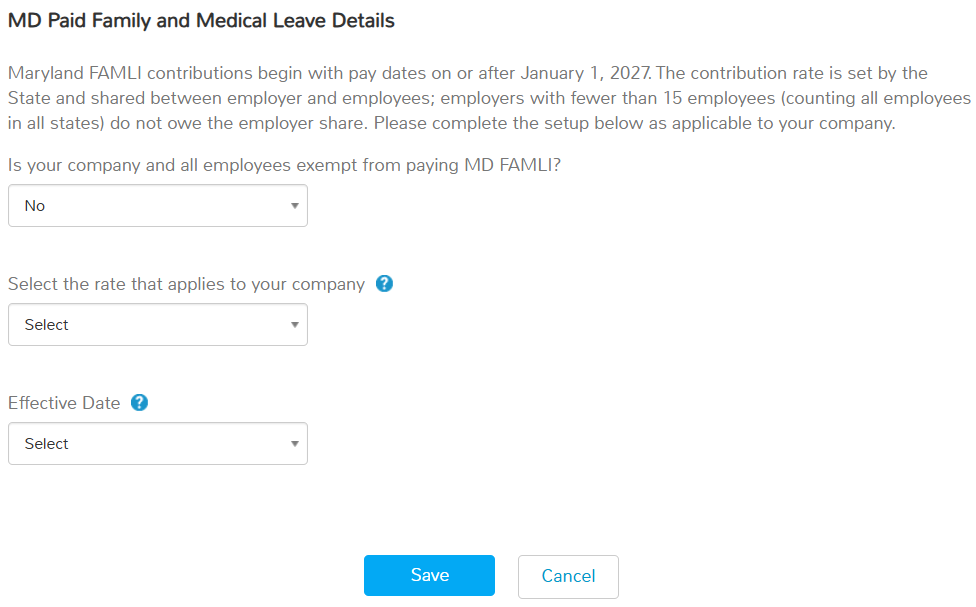
Until this section is saved, the Payroll Dashboard shows the critical error State tax information for MD is missing in the system and a payroll with a 2027 pay date cannot be processed.
How It Works
- Contributions apply to gross wages up to the Social Security wage base. They appear on paychecks as MD Paid Family and Medical Leave (employee) and MD Paid Family and Medical Leave - Employer.
- To exempt an individual employee, open their payroll details and go to Tax Exemptions > Other Tax Exemption. This removes both the employee and the employer contribution for that person.
- Employee contributions are reported in W-2 Box 14 as MD PFML, starting with tax year 2027.
- After your first save, View History on the section lists each setting by effective date: exempt status, rate and split.
What Stays the Same
Nothing changes for 2026 pay dates, pay stubs, W-2s or year-end reconciliation. Employers without a Maryland work location see no change.
Learn more: Adding State Tax Information · Setting Up Employee Payroll
UZIO DSP Program Enhancements
CMW Rate Compliance and Additional Jobs
You can now assign your Delivery Associate job titles, such as Helper, Walker or Driver, as additional jobs, with the Contractual Minimum Wage (CMW) rate for that title filled in for you. Additional jobs are now checked against CMW too, and CMW Rate Compliance on the home page lists and fixes every rate below CMW, including additional jobs.
Applies to: Delivery Service Partners (DSPs).
What's Changing
- Earlier: To pay a Delivery Associate for a second role, you had to create your own job, such as “Driver”, add it to the employee as an additional job and type in the rate yourself. UZIO checked only the hourly rate on the employee's Job page against CMW, so an additional job rate below CMW could go unnoticed.
- With this release: Your Delivery Associate job titles appear in the additional jobs list, ready to assign, with the CMW rate for the employee's work location filled in. You see whether each rate meets CMW before you save. Every additional job, including jobs you added earlier, is checked against CMW, and any rate below CMW is listed in CMW Rate Compliance for you to fix.
Why This Matters
Assigning the actual job title means the CMW rate for that title is applied from the start, with no jobs to create or rates to look up. And because additional jobs are now checked too, a second-role rate below CMW shows up in CMW Rate Compliance instead of going unnoticed. Keep in mind that the check uses the employee's own work location; see section 5 for jobs worked at another station.
1. Assign a Job Title as an Additional Job
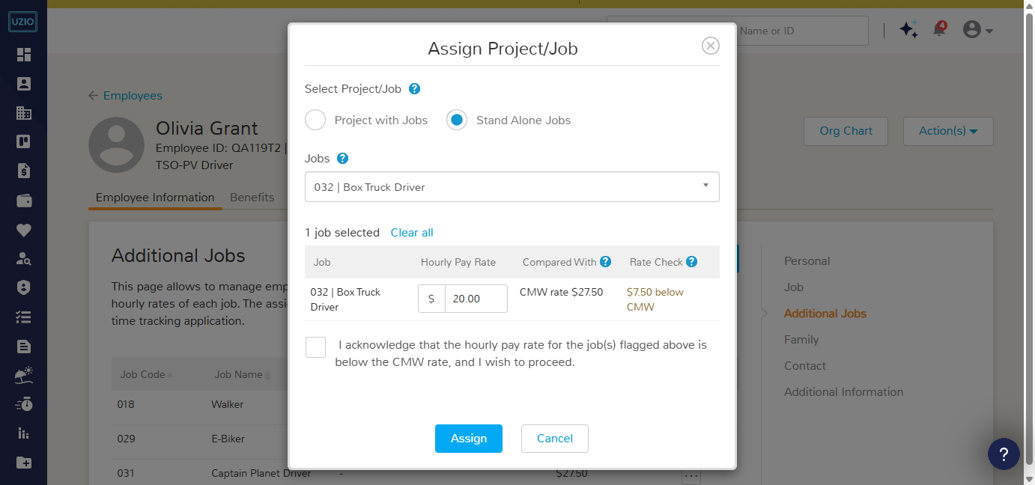
Where: Employee > Additional Jobs > Assign Project/Job > Stand Alone Jobs
- Your Delivery Associate job titles appear in the list next to the jobs you created, each with its CMW rate. The employee's own job title, and titles they already have as an additional job, are not listed.
- When you select a title, the hourly rate is filled in with the CMW for that title at the employee's work location. You can change it.
- You no longer need to create your own Helper or Driver job and type in a rate.
- From then on it works like any additional job: clock-in, time cards, schedules, payroll and pay stubs.
- When you schedule an employee on a Delivery Associate job title they don't have yet, UZIO adds it as an additional job at that title's CMW rate.
2. See the Rate Check Before You Save
- Each job you select shows its rate and a result: Meets CMW, <amount> below CMW, or No rate.
- A job title is checked against its own CMW. A job you created is checked against the CMW for the employee's own job title.
- A rate below CMW does not stop you. Tick the confirmation box to continue.
- The same check appears when you change the rate later in Edit Job Details.
- Jobs that belong to a project are not checked here, but they are still listed in CMW Rate Compliance.
3. A Clearer Warning on the Job Page
Where: Employee > Job > Compensation or Job Details Update
- You see the CMW rate that applies on the date you choose, and how much the rate is short if it is below CMW.
- Use CMW rate sets the rate to the CMW in one click.
- To save a rate below CMW, enter a reason and tick the confirmation box.
- When you change an employee's job title, the summary shows the new hourly rate: raised to the new title's CMW if the current rate is below it, otherwise unchanged. Pay is never lowered.
- If the new job title is one the employee already has as an additional job, that additional job ends on the effective date of the change.
4. Find and Fix Rates Below CMW in One Place
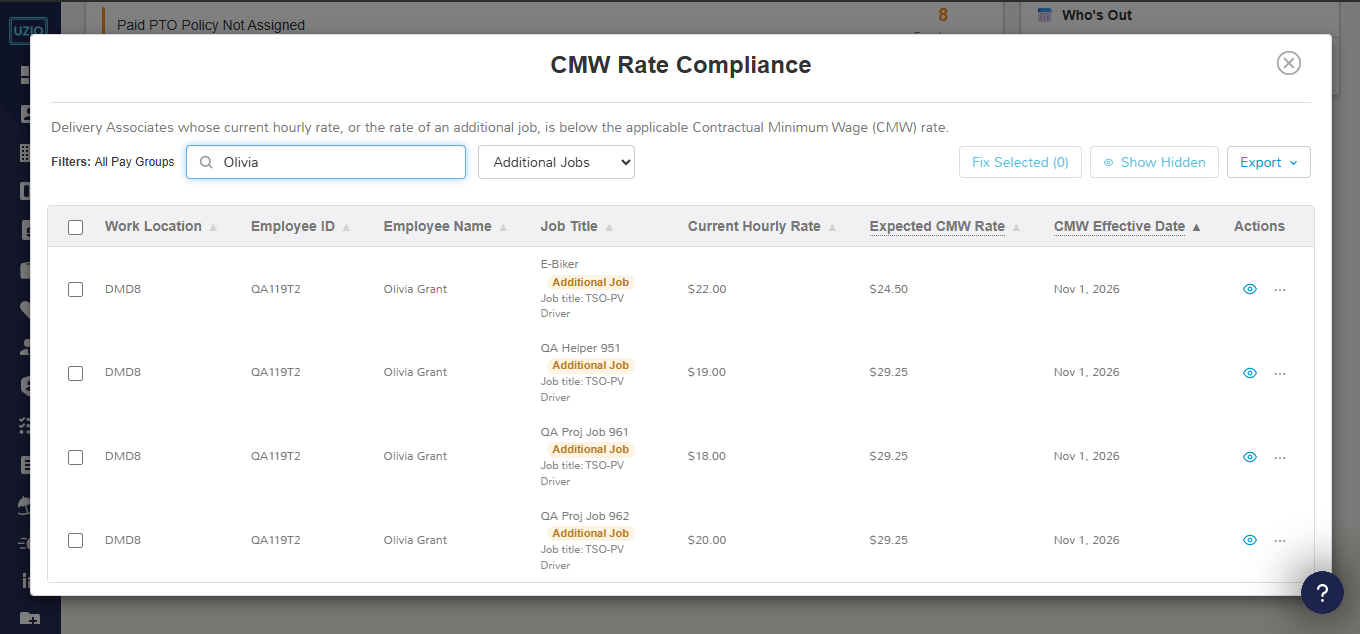
Where: Home > Alerts & Insights > Employee Data > CMW Rate Compliance
- The list now includes additional jobs, project jobs and $0.00 rates, and shows a rate below CMW however it was entered, including imports and onboarding.
- Additional jobs are marked with an icon; hover over it to see the job and the employee's job title.
- Fix Now and Fix Selected set the rate to the CMW, for additional jobs too.
- Search by employee name or ID, and filter by All Rates, Profile Rates or Additional Jobs.
- If there is no CMW for a title and location, the row shows Not available and cannot be fixed from the list.
5. Important: Additional Jobs Worked at Another Station
UZIO checks an additional job against the CMW for the employee's own work location, even if the job is worked at a different station. It will not warn you when the rate is below the other station's CMW, so that rate is yours to maintain.
- When you assign the job, enter the CMW for the station where the work is done, if it is higher than the rate filled in.
- When CMW rates change, update the rate in Edit Job Details.
- If an employee works across stations and the rate shown in CMW Rate Compliance is already correct for where they work, you can skip fixing that row.
- If the employee moves for good, change their work location on the Job page so UZIO checks against the new station.
6. Job Codes 018 to 032 Are Reserved
These codes belong to the Delivery Associate job titles.
- A new or edited job cannot use one of these codes. You will see a message naming the job title that uses it.
- If one of your jobs already used one of these codes, it has been updated with a “J” in front. For example, 019 became J019. The job name, assigned employees, rates and history stay the same. If you use the code outside UZIO, such as in a spreadsheet, update it there.
- If one of your jobs has the same name as a job title, for example your own Helper job, nothing changes. You will see both in the list and can move employees to the job title when you choose.
- Jobs created from a job title appear in Projects and Jobs but are managed from the employee's Additional Jobs page.
Learn more: Correcting Contractual Minimum Wage (CMW) Rates · Managing Employee Records
Was this article helpful?
That’s Great!
Thank you for your feedback
Sorry! We couldn't be helpful
Thank you for your feedback
Feedback sent
We appreciate your effort and will try to fix the article