UZIO Product Updates, October 2026 Additional Enhancements
This release focuses on Time Tracking for DSPs. A new Schedule Sync Issues page lists every shift that Route Data Sync could not bring into UZIO, with clear actions to resolve each one. Cortex Integration is now called Route Data Sync across the Employer Portal and the browser extension, and the Compliance Dashboard's hours-based metrics count only worked hours. TSO-PV Drivers are also checked against their own Contractual Minimum Wage (CMW) rate.
Questions or feedback? Contact us at support@uzio.com
Quick Links
UZIO Time Tracking Enhancements
- Cortex Integration Renamed to Route Data Sync
- Resolving Route Data Sync Issues from the Schedule
- Unpaid Breaks Excluded from Wage and Hours Compliance Metrics
UZIO DSP Program Enhancements
UZIO Time Tracking Enhancements
Cortex Integration Renamed to Route Data Sync
Cortex Integration is now called Route Data Sync across the Employer Portal, including Time Tracking Settings > Route Data Sync, and the browser extension, now UZIO Route Data Sync. On the Time Variance page, punches from the Logistics Portal appear under Logistics Portal Punches.
Work blocks synced from the Logistics Portal to UZIO show a Synced badge on the Schedule page, so you can tell them apart from shifts created in UZIO.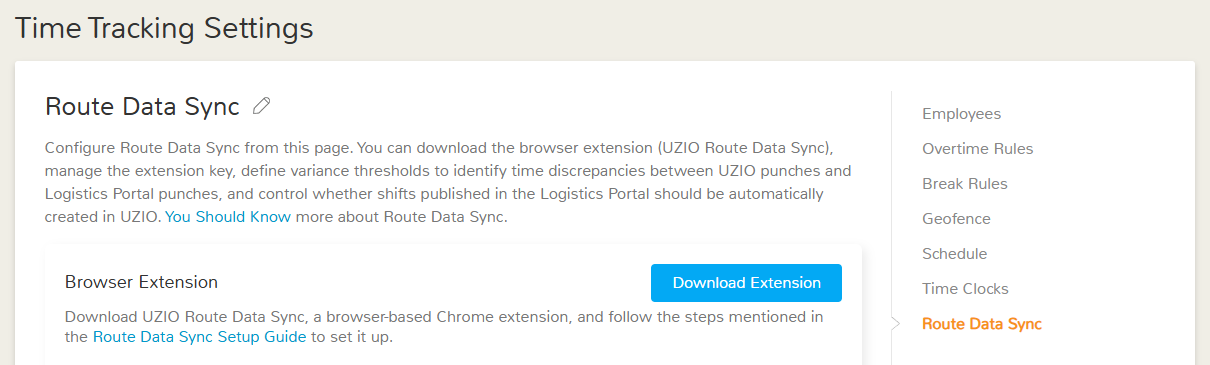
Time Tracking Settings > Route Data Sync
A synced work block on the Schedule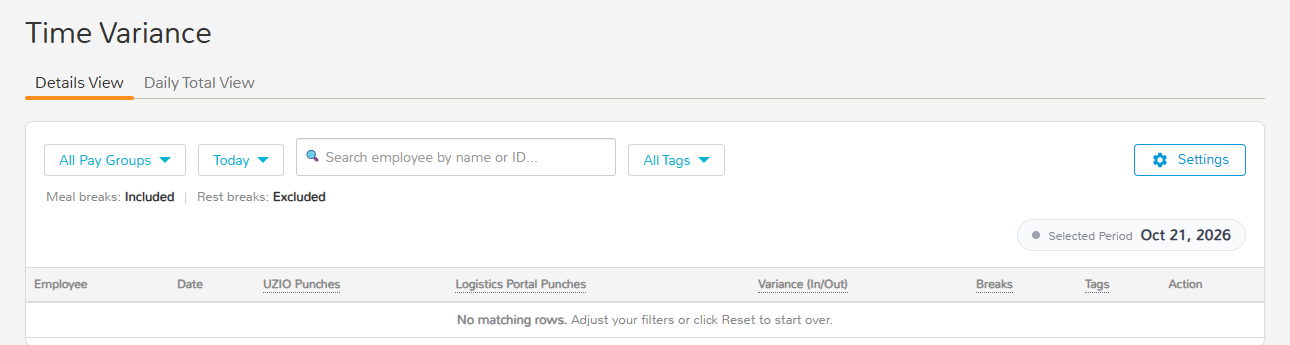
Time Variance: Logistics Portal Punches
What Stays the Same
- Existing setup keeps working: If you already use Route Data Sync, it continues without interruption. Your extension key, station codes and settings are unchanged.
What You Need to Do
Nothing. The name is already in place across the Employer Portal and the browser extension.
Learn more: Setting Up Route Data Sync · Reconciling Logistics Portal and UZIO Hours (Time Variance)
Resolving Route Data Sync Issues from the Schedule
A new Schedule Sync Issues page lists every shift that Route Data Sync could not bring into UZIO, or that no longer matches the Logistics Portal, with clear actions to resolve each one. Route Data Sync also keeps your published shifts and the changes you make in UZIO in place as routes change.
Applies to: Employer Portal > Time Tracking > Schedule. Available to employers using Route Data Sync. Users can view and manage only the schedules of employees they are authorized to manage.
Why This Matters
Your schedule in UZIO stays in line with the Logistics Portal without losing published shifts or the changes you make in UZIO, and a shift that cannot be synced never goes unnoticed.
What's New
- Schedule banner: An amber banner on the Schedule page shows how many shifts have sync issues for the dates you are viewing, with a View details link.
- Schedule Sync Issues page: View details opens a page listing the sync issues for the dates you are viewing. Search by employee name or employee ID, and use bulk actions where available. Each issue offers its own actions:
- Driver Not Linked to a UZIO Employee: Link the driver to an employee so their shifts can be created in UZIO.
- Synced Block Conflicts with the UZIO Shift: Choose Replace It with the Synced Block (cannot be undone) or Keep the UZIO Shift.
- Block Assigned to a Terminated Employee: Choose Ignore the Block.
- Synced Shift Deleted in UZIO: Choose Restore the Shift or Keep It Deleted.
- Synced Shift Edited in UZIO: Choose Revert to the Synced Block Time or Keep the UZIO Version.
- Shift on a Time-Off Day: For a published shift on a day with approved or pending time off. Choose Cancel the Time Off (if you can manage that employee's time off), Delete the Shift or Keep Both.
- UZIO-Only Shift with No Matching Block: Choose Delete It or Keep It as a UZIO-Only Shift.
- Block Time Changed after Clock-In: Acknowledge the issue.
- Block Removed after Clock-In: Acknowledge the issue.
- Unmapped Shifts: Choose Create the Shift or Ignore. These are routes with no matching shift in UZIO and no other issue, so missing shifts do not go unnoticed.
- The issue list updates itself: When the cause of an issue goes away, the issue leaves the list. For example: the conflicting shift is deleted from the Schedule page, the employee is rehired, or the time off is cancelled. If circumstances change, the issue moves to the issue type that now applies.
- Shift Removed notifications: When a published shift is removed, by a user or by Route Data Sync, the employee gets a Shift Removed notification in the app and by email, SMS and push notification, using the same channels your company has set for shift-published notifications. This covers removal from the Schedule page, by reassignment, by moving the shift to another date, and from the Schedule Sync Issues page. No notification is sent for draft shifts or for shifts that have already ended.
How Route Data Sync Handles Your Shifts
- Route changes update the matching shift: When a route changes in the Logistics Portal, Route Data Sync updates the matching shift in UZIO. Published shifts stay published.
- Clocked-in shifts are protected: Once an employee has clocked in, Route Data Sync does not change or delete the shift. If the route then changes or is removed, it is listed as an issue for you to review.
- Your UZIO edits are kept:
- Changing the start or end time of a synced shift in UZIO detaches it from the Logistics Portal, so later syncs do not overwrite your times.
- Changing only the job, notes or color keeps the link to the Logistics Portal.
- A synced shift you delete in UZIO is not created again while its route stays the same. If the route later changes, the shift is created again as a Draft. Moving a synced shift to another date or employee works the same way as deleting it.

The amber banner on the Schedule page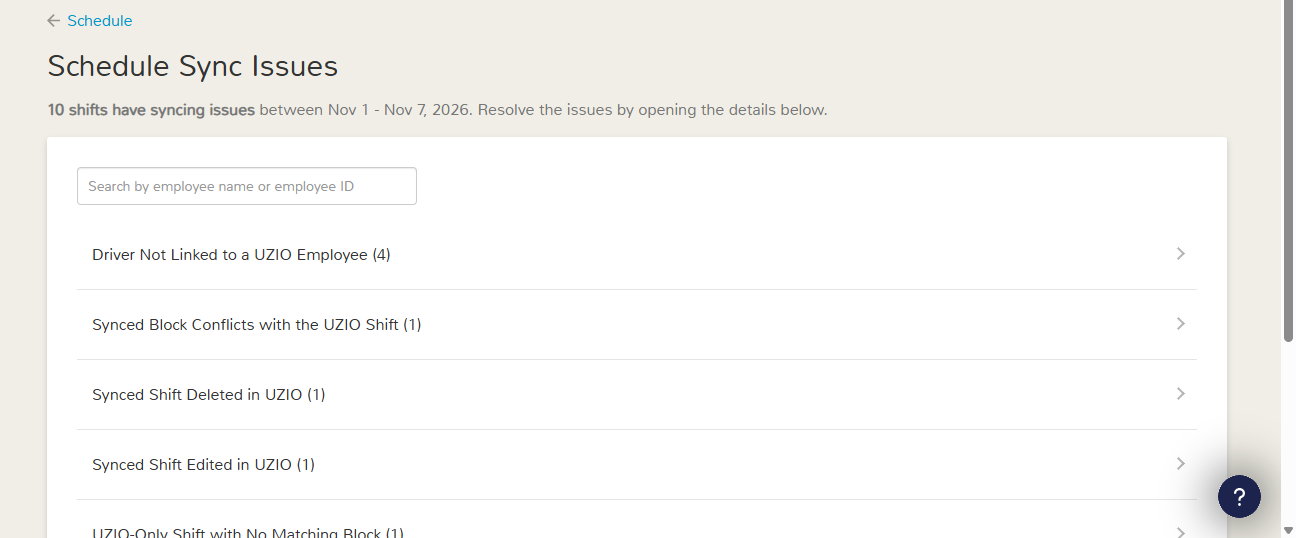
The Schedule Sync Issues page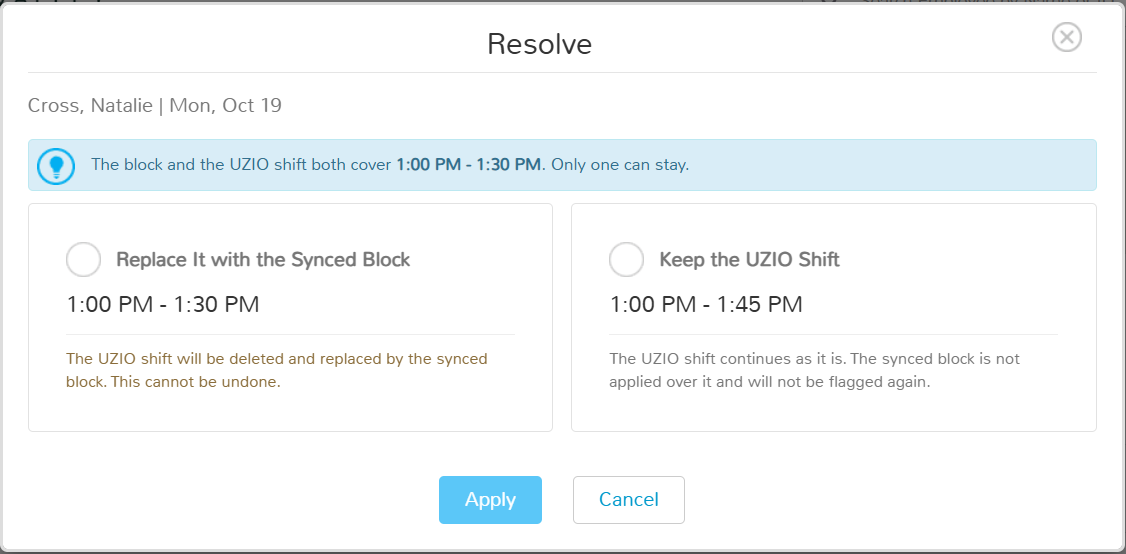
Resolving a synced block conflict
What Stays the Same
- New synced shifts still arrive as Draft, and you still publish them in UZIO. The sync never publishes or unpublishes a shift.
- Routes with no driver assigned in the Logistics Portal are not synced, and neither are routes dated before today or more than 7 days ahead.
- Shifts created in UZIO that do not match or overlap a Logistics Portal route are never changed by the sync.
What You Need to Do
When the amber banner appears on the Schedule, click View details and resolve the issues listed.
Learn more: Resolving Schedule Sync Issues (Route Data Sync) · Managing Shifts: Creating, Publishing, Editing, and Deleting
Unpaid Breaks Excluded from Wage and Hours Compliance Metrics
Hours-based metrics on the Compliance Dashboard now count only worked hours. Unpaid break time is no longer counted.
Applies to: Employer Portal > Compliance Dashboard (home page)
Why This Matters
The dashboard used to count the full time from clock-in to clock-out. An employee who clocked in at 6:00 AM, took a 1-hour unpaid lunch and clocked out at 6:30 PM showed 12 hours 30 minutes and was flagged as working over 12 hours. They now show 11 hours 30 minutes and are not flagged.
What's New
- Updated metrics: Unpaid breaks are now left out of: Approaching 12 Hrs Limit, Reaching 12 Hours, Worked Over 12 Hours, Approaching 60 Hrs Limit, Reaching 60 Hours, Worked Over 60 Hours, the worked-hours part of Projected to Exceed 60 Hours, and the hours shown for 7 Consecutive Working Days.
- How hours are calculated: Daily worked hours are the time from clock-in to clock-out, minus unpaid break time.
- Which breaks count:
- Deducted: unpaid breaks, including breaks deducted automatically by the break rule.
- Not deducted: deleted breaks, breaks waiting for manager approval, and missed breaks that were waived or acknowledged.
What Stays the Same
- Paid breaks still count as time worked.
- Scheduled hours are unchanged, including Scheduled Over 12 Hours and the scheduled part of Projected to Exceed 60 Hours.
- The 12-hour and 60-hour limits, the consecutive-day count and all other dashboard cards are unchanged.
What You Need to Do
Keep a close eye on these metrics. Because unpaid break time no longer adds to the totals, employees are flagged later than before, closer to the actual limit. Compliance gaps shown on the dashboard could lead to a Corrective Action Plan (CAP) or a Courtesy Notice, so review the metrics regularly and act on potential violations promptly.
Learn more: Your Employer Home Page (Compliance Dashboard)
UZIO DSP Program Enhancements
Contractual Minimum Wage (CMW) Rate for TSO-PV Drivers
UZIO now checks employees with the TSO-PV Driver job title against the TSO-PV Driver Contractual Minimum Wage (CMW) rate for their station, and the CMW Rate Compliance popup shows you anyone whose rate is below it.
What's New
- TSO-PV Driver job title is already in your account: UZIO automatically adds a TSO-PV Driver job title, in the Delivery Associates job category, to every DSP account. You do not need to create it.
- TSO-PV Driver rate supported: Where a station has a TSO-PV Driver CMW rate, employees with the TSO-PV Driver job title at that station are checked against that rate.
- See who is below the CMW rate: On the home page, under Alerts & Insights > Employee Data, the CMW Rate Compliance popup lists TSO-PV Drivers below the CMW rate, along with your other Delivery Associates. Select them and click Fix Selected to correct their rates.
What You Need to Do
- Assign the TSO-PV Driver job title to your TSO-PV drivers. Only employees with this exact job title are checked against the TSO-PV rate. A driver under another job title, or under a renamed or self-created copy of it, is not.
- Then open the CMW Rate Compliance popup from Alerts & Insights > Employee Data on the home page and fix any rates listed below the CMW rate.
Learn more: Correcting Contractual Minimum Wage (CMW) Rates
Was this article helpful?
That’s Great!
Thank you for your feedback
Sorry! We couldn't be helpful
Thank you for your feedback
Feedback sent
We appreciate your effort and will try to fix the article