UZIO Product Updates — September 2026 Additional Updates
Following our September 2026 Product Release, this update covers three further changes: a completely rebuilt UZIO Help Center, a change to how Missed Clock Out entries are closed in Time Tracking, and the ability for Employer Admins to reset 2-Step Verification for their users.
Questions or feedback? Contact us at support@uzio.com
Quick Links
- A Rebuilt Help Center
- AI Copilot Now Answers How-To Questions
- Clock Out Removed from Missed Clock Out Entries
- Reset 2-Step Verification for Users
UZIO Help Center
A Rebuilt Help Center
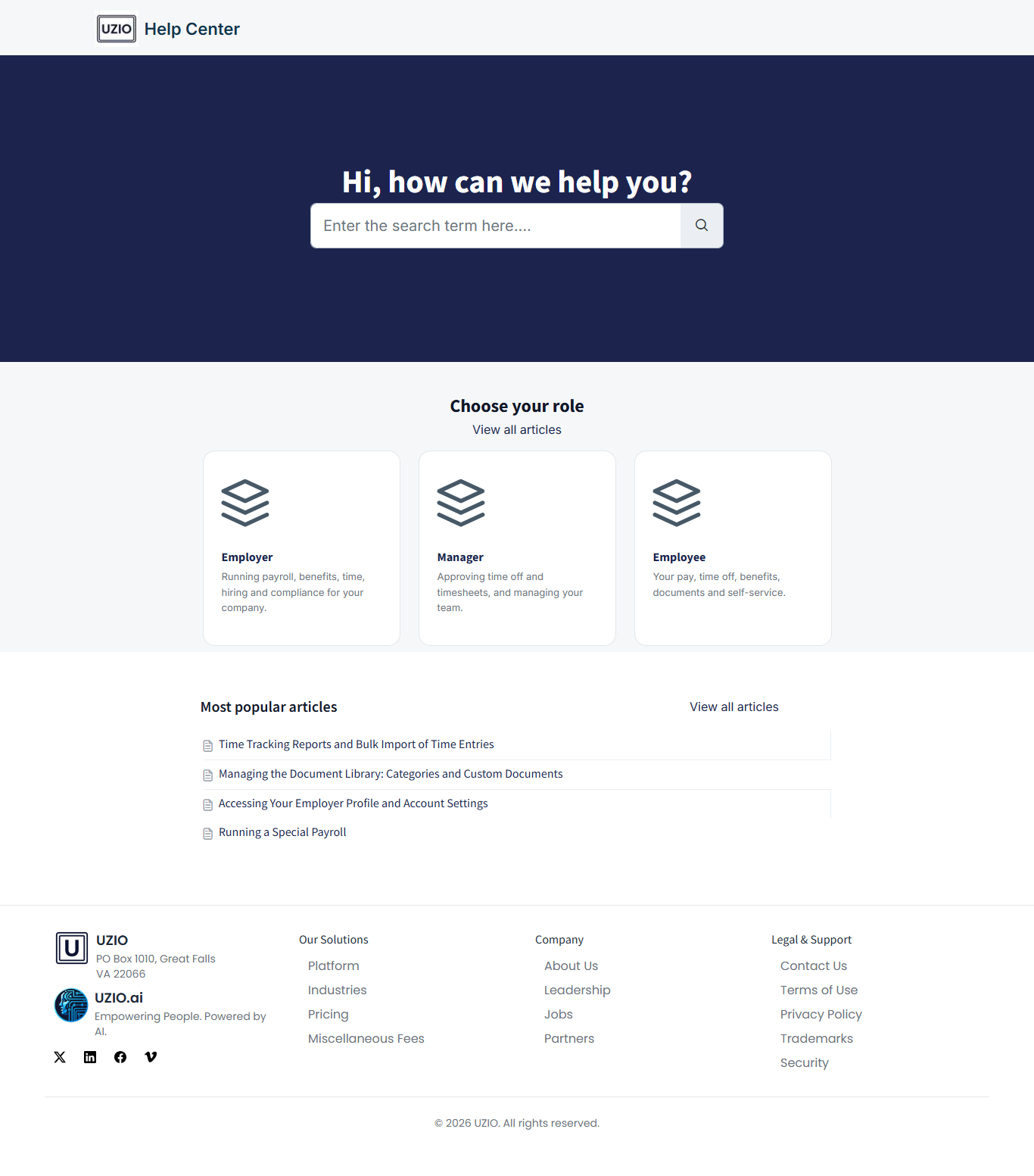
The UZIO Help Center has been rebuilt from the ground up — new structure, new navigation, and substantially more content than before. It remains at help.uzio.com, but the address of every individual article has changed.
What's New
- Organized by role. The Help Center now opens with a role picker — Employer, Manager, or Employee — so you start from the guidance written for the work you actually do, rather than searching a single undifferentiated list.
- More than 250 articles. Coverage has grown considerably, with new and rewritten articles across payroll, benefits, time tracking, time off, hiring and onboarding, reports, integrations, and account settings.
- Payroll broken into sections. Payroll guidance is no longer one long list. It is now grouped into Setup, Running Payroll, Taxes & Year-End, Garnishments, and Accounting & GL.
- The full product release archive. Every UZIO release note from 2018 to today is now published in the Help Center under Product News & Updates, organized by year. Previously these were harder to find.
- In-article navigation. Longer articles now carry an "In this article" table of contents so you can jump to the section you need.
What You Should Do
Go to help.uzio.com as you always have — the Help Center is in the same place.
Individual article addresses have changed, however. If you have bookmarked specific help articles, or saved links to them in your own internal documentation, please update those bookmarks. Article links in UZIO emails sent before this release point to the previous article addresses and will no longer resolve.
What Stays the Same
The Help Center remains publicly accessible and does not require a UZIO sign-in. Support contact routes are unchanged: support@uzio.com or +1 571-601-1752.
AI Copilot Now Answers How-To Questions
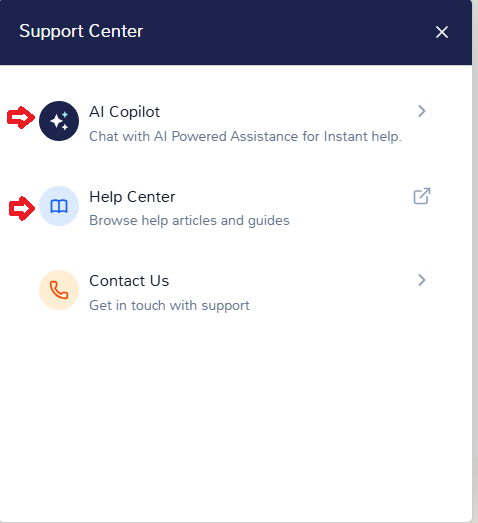
The UZIO AI Copilot has been trained on the rebuilt knowledge base. Alongside the questions it already answers about your payroll, time off and employee information, it can now answer how-to questions about using UZIO.
What's New
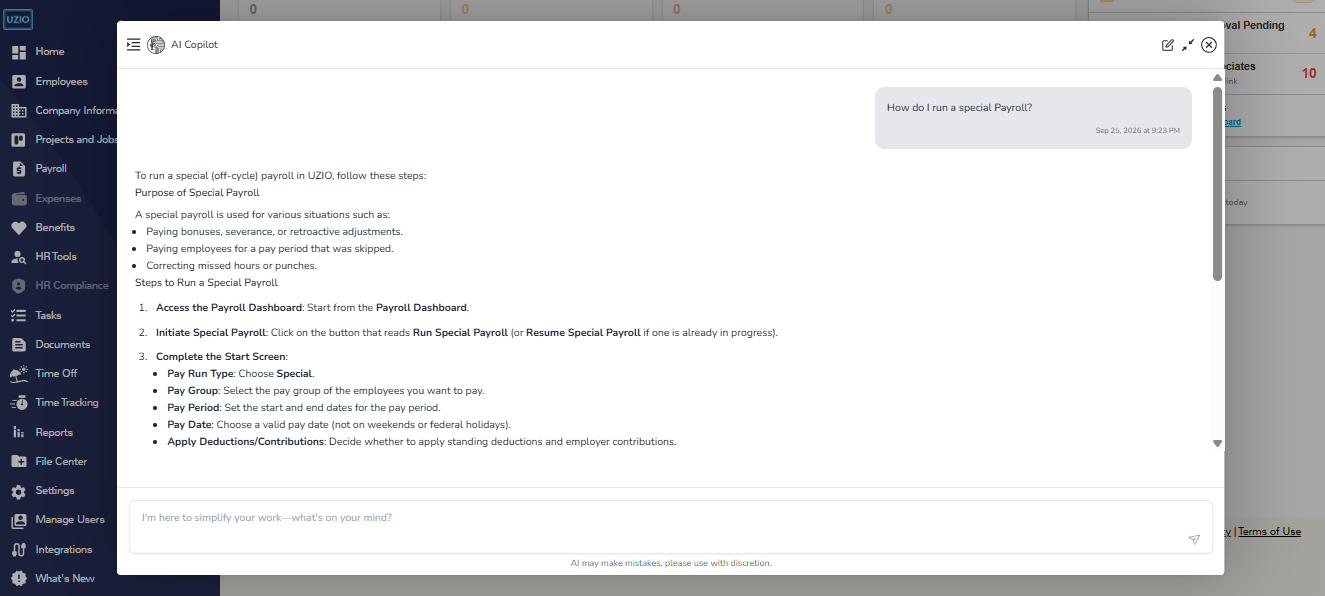
- Product and how-to answers. Ask the Copilot how to do something in UZIO — set up a deduction, run a special payroll, correct a timesheet — and it answers directly, drawing on the same guidance published in the Help Center.
- Answers from current documentation. Because the underlying knowledge base has been rewritten and verified, the Copilot's answers reflect how UZIO works today rather than older material.
- Broader coverage. The Copilot can now answer across payroll setup and processing, benefits, time tracking and time off, hiring and onboarding, reports, integrations, and account settings.
What Was Already There
The Copilot continues to answer questions about your payroll, time off and employee information, including the values held in your company's custom fields.
Please Review What Copilot Tells You
AI can make mistakes. Treat the Copilot's answers as a starting point rather than a final word, and review them before you act. Where pay, taxes, benefits eligibility or compliance are involved, confirm the answer against the linked help article or the relevant screen in UZIO before making a change. If an answer looks wrong, let us know at support@uzio.com so we can correct it.
Availability
AI Copilot is enabled at the company level. Where it is enabled, access is granted per role under Manage Users — it is a separate grant on the role, so an administrator decides which roles can use it. If you do not see the Copilot and would like it enabled, contact support@uzio.com.
Coming Next
We are continuing to develop the Copilot. Reporting and insights are next: the ability to ask for the figures you need and get them back directly, rather than building a report to find them.
UZIO Time Tracking Enhancements
Clock Out Removed from Missed Clock Out Entries
Time entries flagged as Missed Clock Out no longer offer a Clock Out action in the three-dot (⋮) menu on the time entries page. You now close these entries by adding the actual clock-out time, so the hours on the timesheet stay accurate.
Applies to: Employer and Employee portals on web, and the Manager and Employee views in the UZIO mobile app.
What's Changing
Earlier: Missed Clock Out entries showed a Clock Out action in the three-dot (⋮) menu. Using it ended the entry at the current date and time, not when the employee actually stopped working.
For example, an entry clocked in at 1:00 PM on Sep 12 and clocked out on Sep 14 at 11:00 AM was split into three separate time entries across Sep 12, 13 and 14.
With this release: The Clock Out action is no longer shown for Missed Clock Out entries. Use Add Clock Out on the time entry card to enter the actual clock-out time.
What Stays the Same
- Entries that are still running keep the Clock Out action, whether they started today or yesterday, and however long they have been running.
- Add Clock Out on the time entry card works exactly as before.
What You Need to Do
Nothing. The change applies automatically across the web portals and the mobile app.
UZIO Security Enhancements
Reset 2-Step Verification for Users
When someone loses access to their authenticator app — a new phone, a reset device — resetting their 2-Step Verification previously meant contacting UZIO Support. An Employer Admin can now do it directly from the Employer portal.
UZIO Security Enhancements
Reset 2-Step Verification for Users
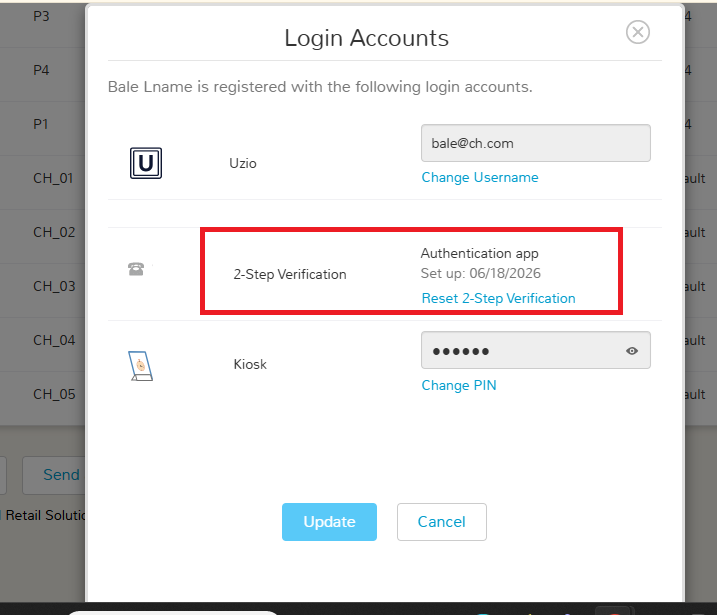
Employer Admin can reset 2-Step Verification (2-Step Login) for employees and employer portal users - for example, when someone gets a new phone or loses access to their authenticator app. After the reset, the user signs in with their password and sets up 2-Step Verification again.
Where: In the Employer portal, open the action menu > Login Accounts from either the Employees list or the Manage Users list.
What's New
- Reset it yourself. An Employer Admin can reset 2-Step Verification (2-Step Login) for employees and for employer portal users, without raising a support request.
- Where to find it. In the Employer portal, open the action menu and choose Login Accounts — from either the Employees list or the Manage Users list.
- What happens next. After the reset, the user signs in with their password and sets up 2-Step Verification again.
Who Can Do This
Only an Employer Admin can reset 2-Step Verification. Because the reset removes a security control from an account that can reach payroll, Social Security numbers and bank details, confirm you are speaking to the right person before you reset it.
Was this article helpful?
That’s Great!
Thank you for your feedback
Sorry! We couldn't be helpful
Thank you for your feedback
Feedback sent
We appreciate your effort and will try to fix the article