UZIO Product Updates — October 2026
This release is focused on Time Tracking: an option to lock timecards as soon as hours are approved, break eligibility that can be calculated on paid worked hours, and a new way for employees to close missed and long-running clock outs from the Kiosk, the mobile app and the web. It also adds five new payroll checks and control over older payroll notifications, a reconnect prompt for QuickBooks Online, and one smaller documents enhancement.
Questions or feedback? Contact us at support@uzio.com
Quick Links
UZIO Time Tracking Enhancements
- Restrict Timecard Edits After Approval
- Exclude Unpaid Break Time from Break Eligibility
- Closing Missed and Long-Running Clock Outs
UZIO Payroll Enhancements
UZIO Payroll Integrations
UZIO HRIS Enhancements
UZIO Time Tracking Enhancements
Restrict Timecard Edits After Approval
You can now make an employee's timecard read-only as soon as their hours for the pay period are approved, or the payroll for that pay period has been processed. Until now, edits were only blocked once payroll had been initiated or synced, and corrections made in that gap could recalculate pay incorrectly.
Applies to: All employer users, on the web portal, the mobile app manager view, and bulk time entry upload or import.
What's New
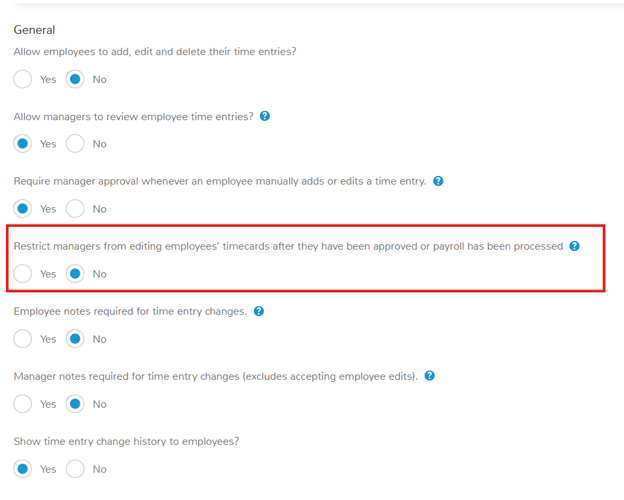
- The setting. Under Time Tracking Settings > Time Clocks: Restrict managers from editing employees' timecards after they have been approved or payroll has been processed (Yes or No), set per employer.
- It is set to No by default for every employer. A change to it is audited.
- Although the setting's name mentions managers, it applies to every employer user who can edit timecards, including administrators.
When the setting is Yes:
- What the lock does. A timecard becomes read-only as soon as that employee's hours for the pay period are approved, or the payroll for the pay period has been processed.
- Add, edit and delete are all blocked, through every route: web, mobile and bulk upload.
- Approval is per employee, per pay period, so approving one employee does not lock another.
- Correcting an approved timecard. Unapprove, make the correction, then approve again. The change leaves a trail instead of being a silent edit.
- A pay period already synced into payroll cannot be unapproved.
- What the user sees. Hovering over a disabled add, edit or delete action shows "Time entry cannot be added, edited or deleted once the payroll hours are approved or payroll is processed."
What Stays the Same
- The existing restriction on editing entries older than a set number of days is unchanged and applies independently. If a timecard is past that limit, unapproving it still will not make it editable, and the retro message is the one shown.
- Employee-side behavior is unchanged. An employee already cannot edit a timecard once the pay period is approved.
- Payroll processing still locks a timecard as it does today. With the setting on, approval or processed payroll locks it as well.
What You Need to Do
- Nothing, unless you want the lock. To turn it on, set the setting to Yes under Time Tracking Settings > Time Clocks.
- Once it is on, correct an approved timecard by unapproving the pay period for that employee, making the change, and approving it again.
- To unapprove, set the employee's Status toggle on the timesheet back to Not Approved.
- If the pay period has already been synced to payroll, it cannot be unapproved. Click Unsync Hours from Payroll first, then unapprove, correct and approve again, and sync.
Learn more: Controlling How Employees Clock In and Out · Approving Timesheets and Syncing Hours to Payroll
Exclude Unpaid Break Time from Break Eligibility
Break eligibility can now be calculated on paid worked hours instead of total clocked time, so unpaid breaks no longer count toward the hours that make an employee eligible for a break.
Why This Matters
- Some break rules, such as California's, do not count unpaid break time as worked time when deciding which breaks an employee is entitled to. This option lets you set up your break rules that way. Check the rules that apply in your state.
- An 8:00 AM to 5:00 PM entry with a one-hour unpaid meal break was being evaluated as nine hours of eligibility. It should be eight.
What's New
- New checkbox on the break rule. Exclude Unpaid Break Time from Break Eligibility now appears on the Add and Edit Break Rule page, in the Break Eligibility and Missed Break Identification section, directly below Setup Break By.
- It is shown only when Setup Break By is By Custom Time Interval.
- Find your break rules under Time Tracking Settings > Break Rules.
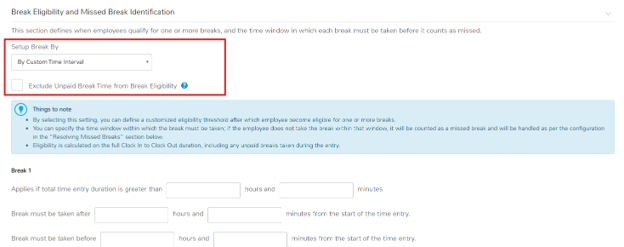
- What checking it does. Eligibility is calculated on Clock In to Clock Out, less all unpaid breaks taken during the entry.
- Paid breaks continue to count as worked time.
- Missed breaks, automatic deductions and break premiums all follow that result.
- Break waiver limits on the rule are measured on paid worked hours too.
What Stays the Same
- The checkbox is unchecked by default on every existing and new break rule, so eligibility, missed breaks and premiums do not change with this release.
- It is not shown for break rules set up By Recurring Time Interval.
- With the checkbox unchecked, eligibility is still calculated on the full Clock In to Clock Out duration, including unpaid breaks.
- Checking it applies to new time entries only. Existing time entries are not recalculated.
What You Need to Do
If your break eligibility should follow paid hours, open each custom time interval break rule and check the new checkbox.
Learn more: Break Rules Setup
Closing Missed and Long-Running Clock Outs
Employees can now add a missing clock out time themselves, from the Kiosk, the mobile app or the web, and a clock out on an unusually long running entry now asks for the date and time. Previously, an employee who missed a clock out had to leave the Kiosk and go into the application to fix it.
Applies to: Kiosk, mobile app and the web Time Tracking home.
What's New
- Missing Clock Out banner. The time clock screen now carries an amber Missing Clock Out banner, with one date chip per entry that is waiting for a clock out.
- It shows whether the employee is clocked out, clocked in or on a break.
- It lists up to two rows of chips, and expands from X More when there are more.
When a day appears on the banner. An entry is flagged as Missing Clock Out once it passes the Flag missing clock out after time set under Time Tracking Settings > Time Clocks. New customers start at 12 hours. The field is optional: you can change it to suit your company or leave it blank.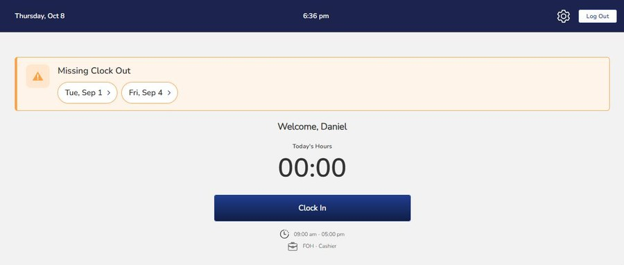
Kiosk: the Missing Clock Out banner, with a chip for each day waiting for a clock out.
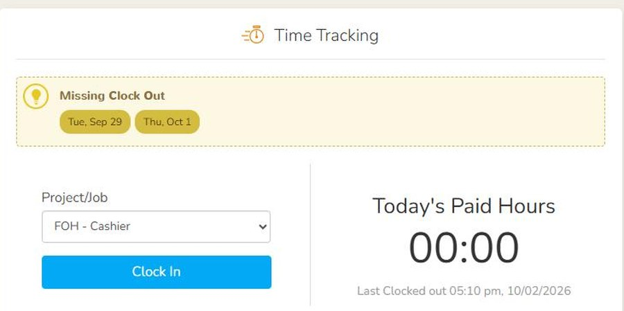 Web: the same banner in the Time Tracking tile on the employee home page.
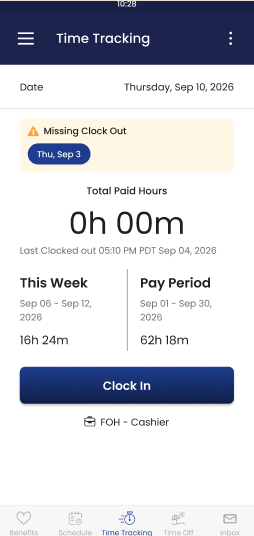 Mobile: the banner on the Time Tracking home in the app.
- Add Clock Out Time. Selecting a chip opens an Add Clock Out Time popup on the web, a bottom sheet on mobile, and a full-width form on the Kiosk.
- It shows when the employee clocked in, a Clock Out Date (the clock-in date or the day after, prefilled with the clock-in date), a Clock Out Time, a live duration and Notes. In the web popup these fields are labelled Date, Time, Duration and Reason.
- On the web, the form warns before saving if the duration is more than 12 hours.
- Saving runs the usual attestation.
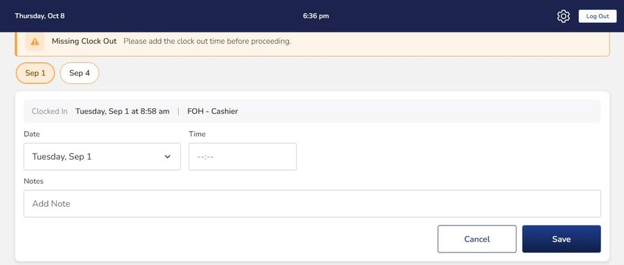
Kiosk: Add Clock Out Time, the full-width form opened from a chip.
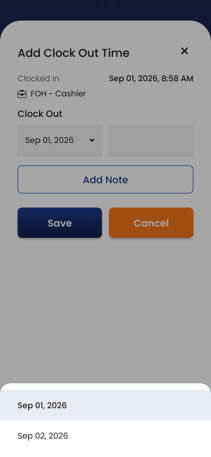 Mobile: the same form as a bottom sheet in the app.
- On the Kiosk, right after sign-in. If an employee has a missed clock out from today, that screen opens as soon as they sign in with their PIN, under the greeting "Welcome, <first name>". Cancel takes them to the clock-in screen, and the day stays on the banner.
- Long-running entries. A new threshold controls how long an entry may run before clocking out asks for a date and time. The default is 12 hours.
- Past the threshold, and until the entry is flagged as Missing Clock Out, a red strip appears: Time entry still in progress — Clocked In <day, date, time>.
- Clock Out then opens the same Add Clock Out Time screen instead of clocking out at the current time.
- If your company flags missing clock outs at 12 hours or less, the entry is flagged first, so the employee fixes it from the banner instead.
After the Employee Saves
- The day leaves the banner.
- Where approval is switched on (Require manager approval whenever an employee manually adds or edits a time entry under Time Clocks), the entry shows as Pending Approval and cannot be edited again until the manager acts.
- If the manager rejects it, the entry returns to Missing Clock Out and reappears on the banner.
Mobile App
The banner and the Add Clock Out Time form reach the UZIO mobile app in an app update, once Apple and Google approve it. If an employee does not see the banner in the app, they should update the UZIO mobile app from the App Store or Google Play.
Learn more: Troubleshooting: I Forgot to Clock In or Out · Using the Time Kiosk
UZIO Payroll Enhancements
New Payroll Checks and Insights
Five new checks join the Payroll Action Center (daily, before payroll) and the Payroll Health Check (on Payroll Summary, before approval): four flag issues to fix before you approve, and one is an informational payment method summary. All five are on by default and listed in Anomaly Settings: on the Payroll Action Center, click the gear icon to open Payroll Settings on the Anomaly Detection tab.
Applies to: Employer portal, regular and special payrolls.
What's New
Tipped earnings without a Tipped Occupation Code (Critical). Flags employees with tip earnings this year but no Tipped Occupation Code on their profile, which the IRS requires on the 2026 W-2.
- The finding clears the day after a code is assigned.
- To resolve: assign the code on the employee profile under Payroll > Occupation Code.
Active garnishment set to $0 (Critical). Flags employees whose active garnishment was set to $0 per pay by a user, until it is restored above $0.
- Reductions that stay above $0 are not flagged.
- To resolve: restore the amount on the employee's garnishment deduction. For a legitimate release, acknowledge the finding and add a note.
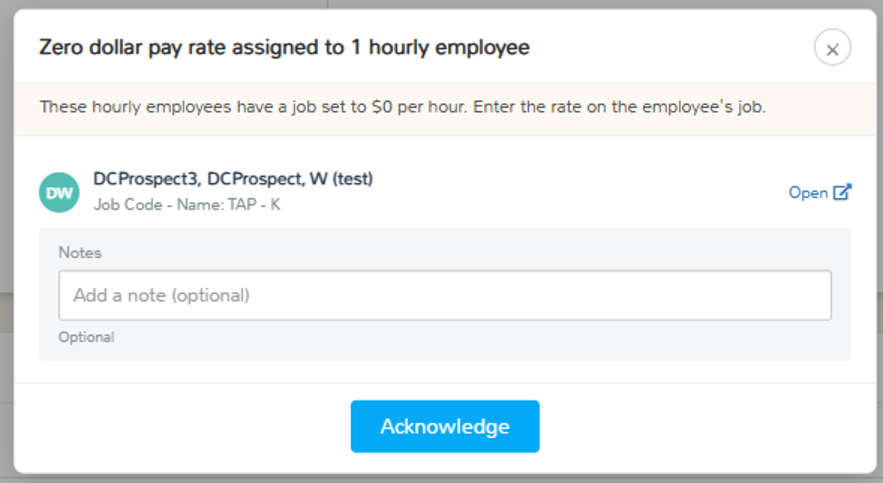
Zero dollar pay rate on a job (Critical). Flags active hourly employees with tracked hours on a job whose rate is $0 or blank.
- Hours on that job pay at the job rate, not the base rate.
- Each job is listed as "Job Code - Job Name".
- Salaried employees are not flagged.
- To resolve: enter the rate on the employee's job.
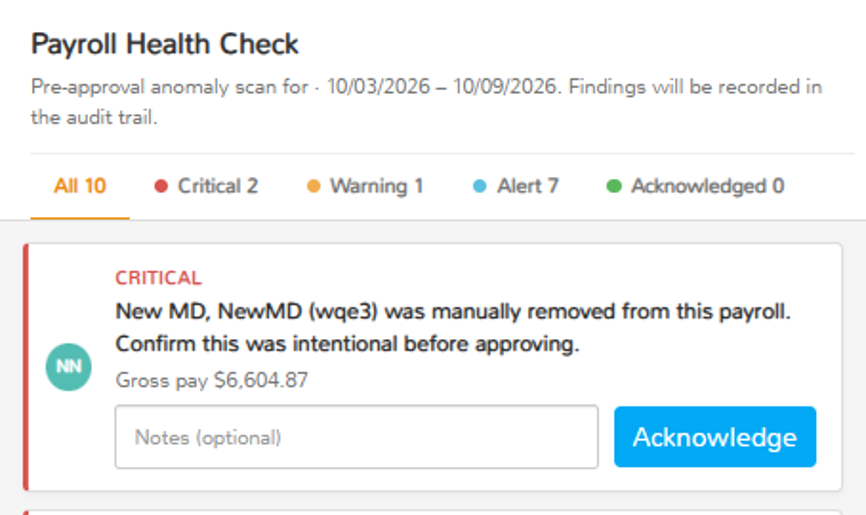
Employee manually removed from the payroll run (Critical). On the Payroll Health Check, flags any employee with pay who was in the run when it was created and was later unchecked by a user, so an accidental exclusion is caught before approval.
- To resolve: if the exclusion was a mistake, select the employee in the payroll run again before approving.
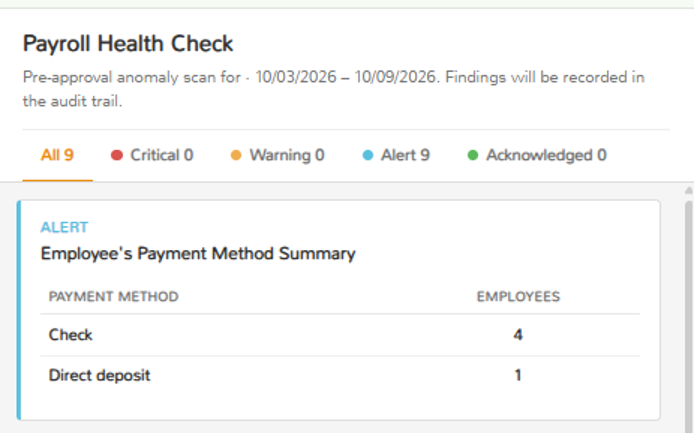
Employee's Payment Method Summary (Alert). On the Payroll Health Check, shows how many employees are paid by Check and how many by Direct deposit, so you know how many checks to print.
- Both rows always show.
- Employees with $0 pay, and voided or removed paychecks, are not counted.
- Informational only.
What Stays the Same
- Existing checks, severities, and the Acknowledge and Note actions are unchanged.
- The Payroll Health Check still does not block approval.
Learn more: Payroll Action Center and Payroll Health Check
Older Payroll Notifications Can Now Be Turned Off
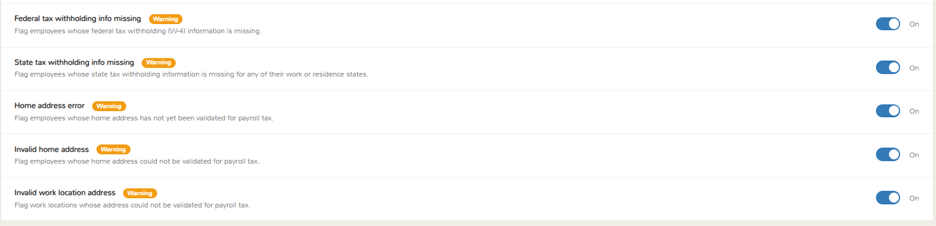
Five pre-payroll notifications have always been on, with no way to switch them off. They are now listed alongside the payroll checks on the Anomaly Detection tab, each with its own On/Off toggle, so you can turn off any of them that you don't need for your company:
- Federal tax withholding info missing
- State tax withholding info missing
- Home address error
- Invalid home address
- Invalid work location address
How to Turn One Off
- Open the Payroll Action Center and click the gear icon. The Payroll Settings page opens on the Anomaly Detection tab.
- Find the notification in the list. It appears alongside the payroll checks.
- Set its toggle to Off.
What Happens When You Turn One Off
- It no longer appears on the Dashboard, the Payroll Action Center or the Payroll Health Check.
- Every change is audited.
- You can switch it back On at any time.
What Stays the Same
- All five stay on unless you switch them off.
- Notifications that block payroll are not affected.
Learn more: Payroll Action Center and Payroll Health Check
UZIO Payroll Integrations
QuickBooks Online: Easier Reconnection
If QuickBooks Online ends UZIO's access, for example because the connection expired or was disconnected on the QuickBooks side, UZIO now tells you. Previously, you found out only when a payroll's journal entry did not reach QuickBooks.
Applies to: Employers using the QuickBooks Online integration.
What's New
- The QuickBooks Online tile on the Integrations page shows Reconnect required, with the message "QuickBooks Online has ended this connection." and a Reconnect button.
- If QuickBooks Online settings cannot be opened, the Integrations page now tells you why instead of returning you there with no message.
What You Need to Do
- If you see Reconnect required, click Reconnect and sign in to QuickBooks Online.
- Reconnect to the same QuickBooks company to keep your settings and account mappings.
- Reconnecting to a different company clears the old settings and mappings, so payroll never posts to the wrong books. Set them up again before your next payroll.
Learn more: Connecting QuickBooks Online · QuickBooks Online: Syncing Payrolls and Troubleshooting
UZIO HRIS Enhancements
Employee Documents: "Dropbox Version" Tag
Background
- With the September 2026 release, creating, assigning and signing custom documents moved from the embedded Dropbox Sign workflow to UZIO's own native e-signature experience.
- Your existing document templates were migrated to UZIO automatically, with their fields carried over.
- Documents already sent for signature through Dropbox Sign stay there until they are completed.
- As a result, a document can now appear twice in the list: the older Dropbox version and the new UZIO version, with the same name.
What's New
- Where a document template exists both in the older Dropbox version and in the new UZIO native version, the Dropbox row now carries a grey Dropbox Version tag, so two rows with the same name can be told apart.
- You see it under Documents > Employee Documents in the left menu.

- The tooltip explains that the document is the same and only the signing service has changed.
- Pending documents can still be completed as usual.
- New documents are sent through UZIO.
Learn more: UZIO Product Updates, September 2026 (Document Signing, Now Native to UZIO) · Configuring Documents for Signature with UZIO Sign (Your existing documents) · Managing the Document Library: Categories and Custom Documents
Was this article helpful?
That’s Great!
Thank you for your feedback
Sorry! We couldn't be helpful
Thank you for your feedback
Feedback sent
We appreciate your effort and will try to fix the article